Maximizing Laptop Battery Life: Insider Tricks for Extra 2 Hours Daily
Discover effective strategies for maximizing your new laptop's battery life, including system optimizations, hardware adjustments, and software management, to consistently gain an additional two hours of daily usage.
Por: adminwp2 em 9 de setembro de 2025
Última atualização em: 5 de dezembro de 2025
Advertisements
Implementing a combination of system optimizations, hardware adjustments, and mindful usage can significantly extend your new laptop’s battery life, often providing an additional two hours of daily operation.
Advertisements
Acquiring a new laptop is exciting, but nothing dampens that enthusiasm faster than a rapidly draining battery. If you’re looking to consistently add two hours to your daily usage, mastering the art of maximizing battery life on your new laptop is crucial. This guide will walk you through insider tricks and practical adjustments to keep your device powered longer, ensuring productivity and entertainment on the go.
Understanding Your Laptop’s Power Consumption
Before diving into specific tricks, it’s essential to understand what truly drains your laptop’s battery. Modern laptops are complex machines, and various components and software processes contribute to power usage. Identifying these power hogs is the first step toward effective battery management.
Advertisements
Your laptop’s battery life isn’t just about the battery itself; it’s a delicate balance of hardware efficiency, software demands, and user habits. High-performance tasks, bright screens, and numerous background applications are common culprits. Understanding this interplay allows for more informed decisions regarding power optimization.
Hardware components and their energy footprint
Different hardware components consume varying amounts of power. The display, for instance, is often the biggest power draw, especially at higher brightness settings. Processors (CPUs) and graphics cards (GPUs) also significantly impact battery life, particularly during intensive tasks like gaming or video editing.
Display: The screen’s brightness and resolution are major power consumers.
Processor and GPU: High-demand tasks push these components, increasing power draw.
Storage (SSD/HDD): While SSDs are more efficient, constant read/write operations still use power.
Wi-Fi and Bluetooth: Active wireless connections continuously consume energy.
Beyond these primary components, peripherals connected via USB, active webcams, and even cooling fans contribute to the overall power consumption. Minimizing the workload on these components directly translates to extended battery life.
Optimizing Display and Graphics Settings
The display is often the single largest consumer of battery power on any laptop. Adjusting your screen and graphics settings can yield immediate and significant improvements in battery longevity. Small changes here can collectively add substantial usage time to your device.
Many users keep their screens at maximum brightness out of habit, unaware of the energy cost. Similarly, advanced graphics settings, while visually appealing, can put a considerable strain on your battery. Striking a balance between visual quality and power efficiency is key.
Lowering screen brightness and implementing adaptive brightness
Reducing screen brightness is perhaps the easiest and most impactful way to conserve battery. Most laptops offer quick keyboard shortcuts or settings menu options to adjust brightness levels. Aim for the lowest comfortable setting, especially in well-lit environments.
Manual Adjustment: Use function keys or the display settings in your OS to lower brightness.
Adaptive Brightness: Enable this feature (if available) to automatically adjust brightness based on ambient light, saving power without constant manual input.
Dark Mode: For OLED screens, using dark mode significantly reduces power consumption as black pixels are turned off entirely.
Beyond brightness, consider your screen’s refresh rate. While higher refresh rates offer smoother visuals, they also demand more power. If your laptop has a high refresh rate display, consider lowering it to 60Hz when on battery power.
Managing graphics card performance
Modern laptops often feature integrated and dedicated graphics cards. Integrated graphics are energy-efficient for everyday tasks, while dedicated GPUs offer superior performance but consume much more power. Proper management ensures the right GPU is used at the right time.
Your operating system or graphics card drivers usually allow you to specify which applications use which GPU. For non-graphic-intensive tasks like web browsing or document editing, ensure your laptop defaults to the integrated graphics. Only switch to the dedicated GPU when absolutely necessary, such as for gaming or professional creative software.
Effective Power Management Settings
Your laptop’s operating system provides a suite of power management settings designed to optimize battery usage. Configuring these settings correctly is a fundamental step in maximizing battery life. These aren’t just about dimming the screen; they delve into how your system handles processor performance, sleep states, and background activities.
Ignoring these built-in tools is like leaving money on the table. Both Windows and macOS offer robust power options that, once understood and customized, can significantly prolong your unplugged time. It’s about letting your laptop work smarter, not harder, when it’s not connected to an outlet.
Customizing power plans (Windows) and energy saver (macOS)
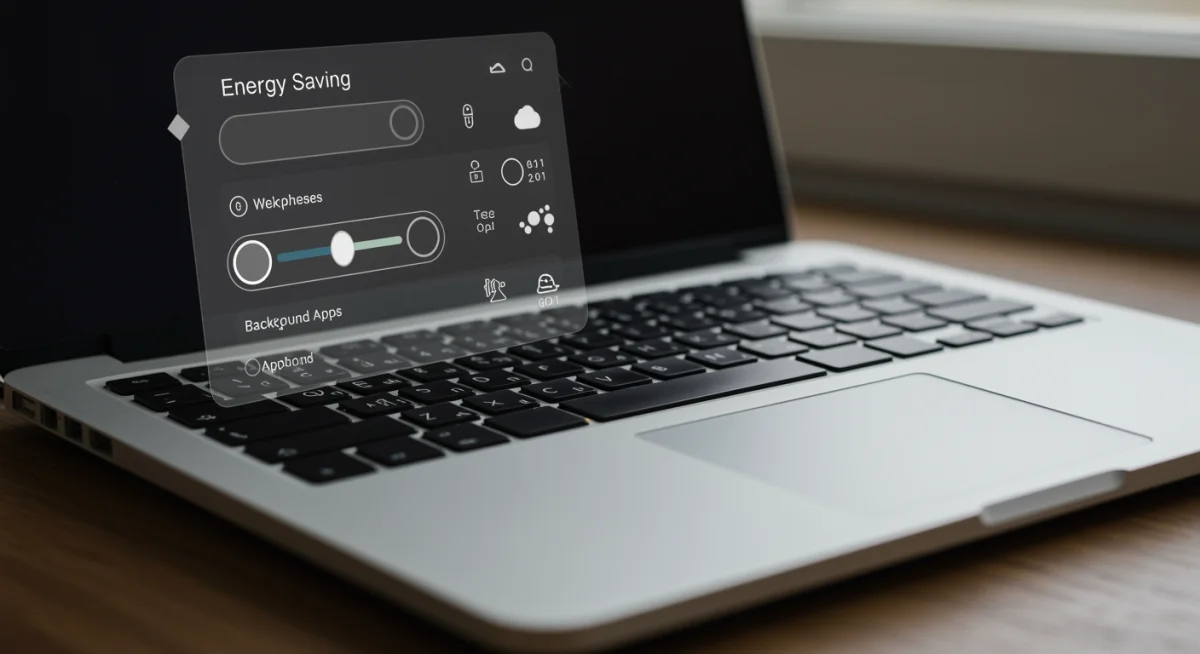
Windows users can create custom power plans or modify existing ones like ‘Balanced’ or ‘Power Saver’. These plans dictate how your laptop manages CPU performance, screen timeout, and sleep settings. For maximum battery life, opt for ‘Power Saver’ or create a custom plan that prioritizes efficiency.
On macOS, the ‘Energy Saver’ preferences allow you to adjust settings for display sleep, hard disk sleep, and power nap. Enabling options like ‘Put hard disks to sleep when possible’ and optimizing ‘Display sleep’ are effective strategies. Ensuring ‘Power Nap’ is off when on battery can also save significant power.
Adjusting sleep and hibernation settings
How quickly your laptop enters sleep mode or hibernates when idle can dramatically affect battery drain. A laptop that idles for long periods without entering a low-power state is essentially wasting energy. Set aggressive sleep timers for when you’re away from your device.
Screen Off Time: Configure your display to turn off after a short period of inactivity (e.g., 2-5 minutes).
Sleep Mode: Set your laptop to enter sleep mode after a reasonable period of inactivity (e.g., 10-15 minutes).
Hibernation: For longer periods of inactivity, hibernation saves your work to disk and completely powers down, consuming virtually no battery.
These settings ensure that your laptop isn’t needlessly expending energy when you’re not actively using it. Even a few minutes saved here and there can accumulate into substantial battery gains over a day.
Managing Background Processes and Applications
One of the stealthiest battery drainers is the myriad of applications and processes running in the background, often unnoticed. Many programs launch on startup and continue to consume CPU cycles, RAM, and network resources, all of which draw power. Taking control of these can significantly improve your laptop’s endurance.
Think of your laptop’s background processes as a party happening without your direct invitation. While some guests (essential system services) are necessary, many others (unnecessary apps) are just consuming resources. Identifying and politely asking the uninvited guests to leave is crucial for battery health.
Identifying and closing power-hungry apps
Both Windows and macOS offer tools to monitor application power usage. In Windows, Task Manager’s ‘App history’ or ‘Processes’ tab can show you which applications are consuming the most CPU or energy. On macOS, Activity Monitor provides similar insights under the ‘Energy’ tab.
Check Task Manager (Windows): Look for applications with high CPU or GPU usage under the ‘Processes’ tab.
Use Activity Monitor (macOS): The ‘Energy’ tab clearly lists apps with significant energy impact.
Close Unused Apps: Make a habit of closing applications you’re not actively using, especially those known for high resource consumption like video editors, games, or multiple browser tabs.
Even applications that appear idle can still be performing background tasks like syncing data or checking for updates. Regularly reviewing and closing these can prevent unnecessary battery drain.
Disabling unnecessary startup programs and background refresh
Many applications are configured to launch automatically when your laptop starts up. While convenient for frequently used programs, this can bloat your system’s startup time and consume battery from the get-go. Reviewing and disabling unnecessary startup items is a vital optimization.
In Windows, you can manage startup apps through the Task Manager’s ‘Startup’ tab. On macOS, go to ‘System Settings’ > ‘General’ > ‘Login Items’. Disable anything you don’t need running immediately. Additionally, some apps have a ‘background app refresh’ feature that can be turned off in their individual settings or your operating system’s privacy settings to further conserve power.
Optimizing Connectivity and Peripherals
Wireless connectivity and connected peripherals, while essential for modern computing, are silent battery killers. Wi-Fi, Bluetooth, and external devices constantly draw power, even when not actively transmitting data. Mindful management of these connections can significantly extend your laptop’s runtime.
Consider your laptop as a small power station. Every connected device and active wireless signal acts like a small drain on that station. By strategically toggling these features, you can prevent unnecessary power leakage and reserve energy for when you truly need it.
Turning off Wi-Fi and Bluetooth when not in use
This is a simple yet often overlooked trick. If you’re working offline or in an area without Wi-Fi, there’s no need for your laptop’s Wi-Fi adapter to be actively searching for networks. The same applies to Bluetooth; if you’re not using a wireless mouse, keyboard, or headphones, turn it off.
Airplane Mode: The quickest way to disable all wireless connections at once.
Manual Toggles: Use the quick settings panel (Windows) or Control Center (macOS) to toggle Wi-Fi and Bluetooth individually.
Wired Connections: When possible, use an Ethernet cable instead of Wi-Fi for sustained online work, as it can be more power-efficient than a constantly searching Wi-Fi adapter.
These small actions, when consistently applied, can prevent a continuous, low-level drain on your battery that adds up over hours.
Disconnecting unused peripherals and external drives
Any device connected to your laptop via USB, Thunderbolt, or other ports will draw power, even if it appears to be idle. External hard drives, USB sticks, webcams, and even charging phones can contribute to battery depletion. Make it a habit to disconnect them when they are not actively being used.
Furthermore, consider the power demands of your peripherals. A high-power external GPU or a heavily backlit keyboard can consume significant battery. If you need to maximize battery life, prioritize essential peripherals or opt for lower-power alternatives.
Adopting Smart Charging Habits and Battery Health Practices
While software and hardware optimizations are crucial, how you charge and maintain your laptop’s battery also plays a significant role in its overall lifespan and daily performance. Understanding modern battery technology and adopting smart charging habits can help preserve your battery’s capacity over time, ensuring those extra hours remain consistent.
Laptop batteries, typically Lithium-ion, have a finite number of charge cycles. While you can’t stop this natural degradation, you can certainly slow it down. It’s not just about getting more hours today, but ensuring your battery remains healthy for months and years to come.
Avoiding full discharge and overcharging
Contrary to popular belief, fully discharging your laptop battery to 0% regularly is detrimental to its longevity. Modern Lithium-ion batteries prefer to operate in the middle range, ideally between 20% and 80%. Similarly, leaving your laptop plugged in at 100% for extended periods can also stress the battery.
Partial Charges: Charge your laptop in shorter bursts, aiming to keep it between 20% and 80% whenever possible.
Battery Health Features: Many manufacturers (e.g., Apple’s Optimized Battery Charging, Dell’s ExpressCharge) offer features that learn your charging habits and prevent overcharging. Enable these if available.
Avoid Extreme Temperatures: Heat is a battery’s worst enemy. Avoid leaving your laptop in direct sunlight or in a hot car, and ensure proper ventilation during use and charging.
These practices help reduce the chemical stress on the battery cells, preserving their capacity and ensuring a longer useful life. A healthy battery retains its ability to hold a charge, directly contributing to those extra hours of daily use.
Calibrating your battery periodically
Over time, your laptop’s battery indicator might become inaccurate, leading to unexpected shutdowns. Calibrating your battery helps the operating system accurately estimate the remaining charge, which is vital for effective power management. This doesn’t magically restore capacity but ensures reliable readings.
Battery calibration typically involves fully discharging the battery until the laptop shuts down, then fully charging it without interruption. This process resets the battery’s internal gauge, providing more accurate reporting. While not needed frequently, doing this every few months can help maintain accurate battery health monitoring.
Software Updates and System Maintenance
Keeping your laptop’s software updated and performing regular system maintenance might seem unrelated to battery life, but it’s a critical component. Software bugs, inefficient drivers, and fragmented systems can all lead to increased power consumption. A well-maintained system simply runs more efficiently, directly impacting battery performance.
Updates often include performance enhancements and bug fixes that can improve how your hardware and software interact, leading to better power management. Think of it as tuning up a car; regular maintenance ensures it runs optimally and uses fuel efficiently.
Ensuring operating system and driver updates
Operating system updates frequently include power management improvements and optimizations. Similarly, updated drivers for your components, especially graphics cards and chipsets, can significantly enhance their efficiency. Always ensure your system is running the latest stable versions.
Automatic Updates: Enable automatic updates for your OS to receive critical power-saving patches promptly.
Graphics Drivers: Regularly check for and install the latest graphics drivers directly from the manufacturer’s website (NVIDIA, AMD, Intel).
Firmware Updates: Sometimes, BIOS/UEFI firmware updates can also include battery management enhancements.
Outdated software can lead to inefficiencies, causing your CPU or other components to work harder than necessary, thus draining the battery faster. Staying current is a passive yet effective way to preserve power.
Regular system cleanup and optimization
A cluttered hard drive, too many temporary files, and unnecessary background services can bog down your system and contribute to increased power usage. Regularly cleaning up your system helps it run smoothly and efficiently.
Use disk cleanup utilities (built into Windows and macOS) to remove temporary files and clear caches. Uninstall programs you no longer use. Consider defragmenting your hard drive if you’re still using an HDD (SSDs don’t require this). These actions reduce the workload on your storage and processor, translating to better battery performance.
Key Strategy
Benefit to Battery Life
Display Optimization
Significantly reduces the largest power draw on most laptops by adjusting brightness and refresh rates.
Power Management Settings
Configures OS to intelligently manage CPU, sleep states, and other components for efficiency.
Background App Control
Reduces unnecessary CPU and RAM usage from apps running unnoticed in the background.
Smart Charging Habits
Preserves the long-term health and capacity of the battery, ensuring consistent performance.
Frequently Asked Questions About Laptop Battery Life
Does always keeping my laptop plugged in hurt the battery?▼
While modern laptops have circuitry to prevent overcharging, continuously keeping the battery at 100% can still contribute to its long-term degradation. It’s often recommended to let the battery discharge partially before recharging, or utilize battery health features if available.
Is it better to fully discharge my laptop battery before recharging?▼
For modern Lithium-ion batteries, it is generally not recommended to fully discharge them regularly. They prefer partial discharges and charges. Keeping the battery between 20% and 80% can actually extend its overall lifespan and maintain capacity more effectively.
How much can screen brightness affect battery life?▼
Screen brightness is one of the most significant factors affecting battery life. Reducing brightness from 100% to 50-70% can often yield substantial gains, sometimes adding an hour or more of usage depending on your laptop model and screen type. It’s a quick and effective adjustment.
Do background apps really drain significant battery?▼
Yes, background applications can consume considerable battery power, especially if they are performing tasks like syncing data, checking for updates, or running animations. Regularly closing unused apps and disabling unnecessary startup programs can free up resources and extend battery duration.
Should I turn off Wi-Fi and Bluetooth to save battery?▼
Absolutely. If you’re not actively using Wi-Fi or Bluetooth, disabling them eliminates a constant power drain as your laptop searches for networks or devices. This small habit can contribute to noticeable battery savings, particularly when you’re working offline for extended periods.
Conclusion
Achieving an extra two hours of daily battery life on your new laptop isn’t a pipe dream; it’s an attainable goal through a combination of diligent practices and smart optimizations. By understanding how your laptop consumes power, fine-tuning display and power settings, managing background processes, and adopting healthy charging habits, you can significantly extend your device’s endurance. Remember, it’s not about a single magic bullet, but rather the cumulative effect of these small, consistent adjustments that will keep your laptop powered longer, enhancing your productivity and mobility. Embrace these insider tricks, and enjoy the freedom of unplugged computing for extended periods.